
Why we built the camera first
Every cataloging tool we looked at opened with an empty form. That form is where collections go to die: you fill in three records, realize there are four hundred more, and quietly stop. The typing was never the interesting part of collecting, and it was the only part these tools automated away from nobody.
So the first screen we built was a camera, and the rule we set ourselves was that nothing may stand between the photo and the saved item. The AI does the describing. You do the deciding.
How do you scan an item?
Four steps, and the fourth one puts you back at the camera for the next thing.
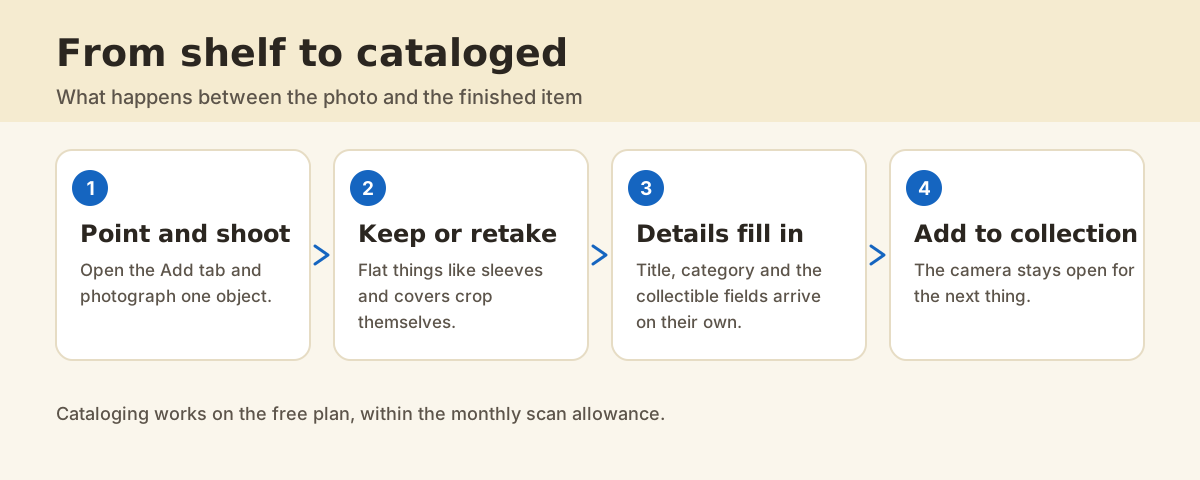
1. Open the Add tab and photograph one object
Add is the middle button in the bottom bar. Point the camera at one thing, straight on, in whatever light the room has. Good photos help, and perfect photos are not required. You can pick an existing photo from your gallery instead, and it goes through exactly the same flow.
2. Keep the photo, or retake it
A preview appears with Keep and Retake. Flat things - record sleeves, book covers, comics, trading cards, stamps, prints - crop themselves to the subject, because those are the categories where a tight crop makes the difference. For everything else the full frame is kept, with an Auto crop link if you want it, and Adjust for a manual crop.
3. Add a location and a quantity, if you want them
The camera screen carries the location editor, so you can say that this bottle lives in the cellar on the second rack before you have left the camera. It remembers what you used last time, which makes a whole shelf quick. Skip it and add it later if you would rather keep moving.
4. Tap Add to collection
The AI starts working in the background and the camera stays open. Nothing navigates away, nothing blocks you, and you can photograph the next five things while the first one is still being identified.
What does the AI actually fill in?
A title, a category, and then the fields that matter for that category. A record gets its catalogue number, format and label. A handbag gets the fields a handbag is judged on. Where a value can be estimated you get an estimate, which is an estimate for informational purposes and never a professional appraisal.
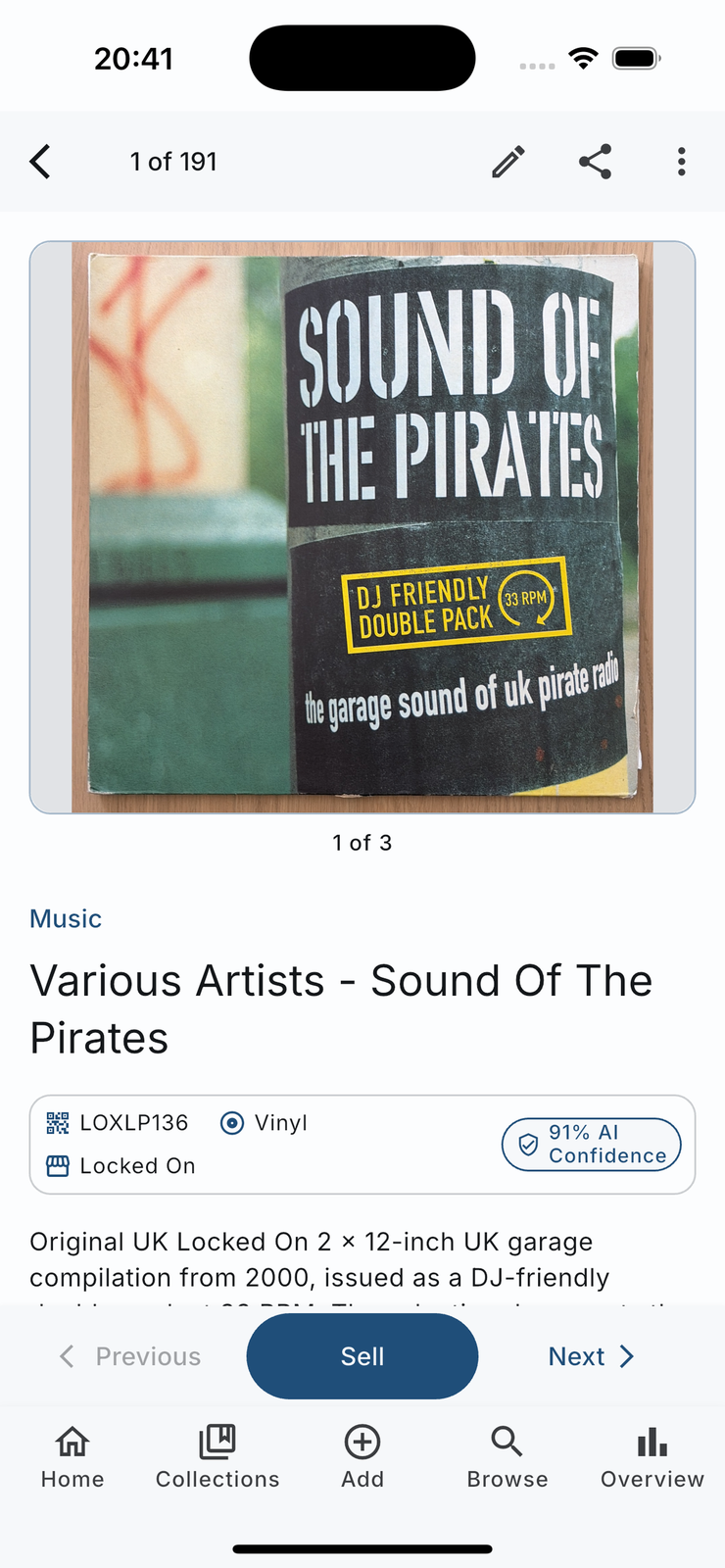
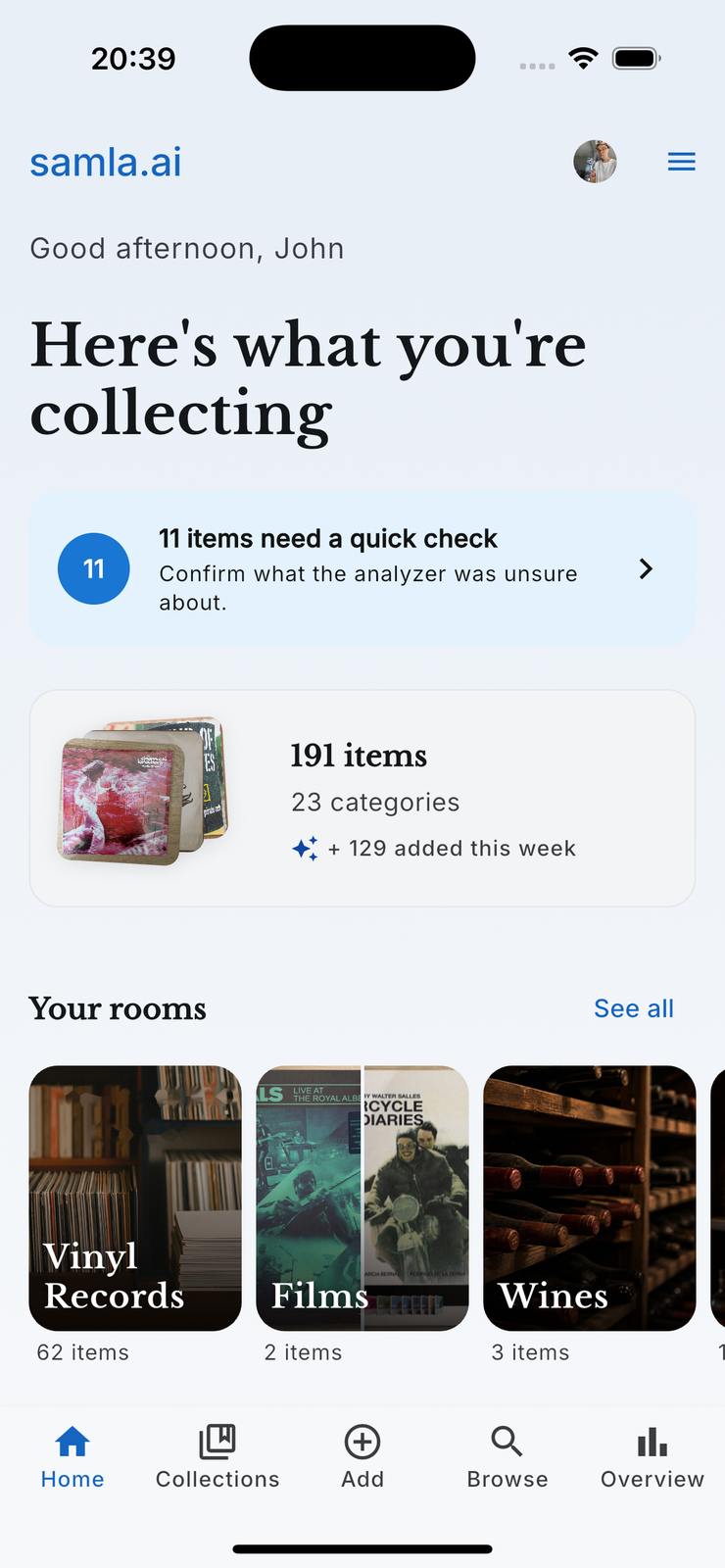
The app shows its confidence rather than hiding it. When a result is uncertain or a field is missing, the item goes to the review queue instead of landing silently, and Home shows you how many things are waiting.
What does it cost?
Cataloging is on the free plan, along with collection rooms, Look up mode and the review queue. The free plan has a monthly scan allowance; Pro and Ultra raise the scan and item limits and add the collector features like market value estimates, collectible detail fields, export, and publishing listings to Discogs, Tradera and eBay.
FAQ
What if samla.ai gets the item wrong?
Correct it. Every field is editable, and the item screen has a Re-identify option where you can add a short note to steer the AI, which is useful when the model is confusing two similar pressings. Items the AI was unsure about go to the review queue so you can find them again in one place.
Can I photograph something that is not a collectible?
Yes. samla.ai covers ordinary household things as well as the thirteen first-class collectible categories, which is what makes it useful for a moving box or a home inventory as well as a record shelf.
How many photos can one item have?
More than one. After you keep the first photo the session panel invites you to add more, which is worth doing for anything with a back cover, a label, a serial plate or damage you want on record.
Does it work without a signal?
The photo is taken locally, and the identification needs a connection because the analysis runs in the cloud. samla.ai asks for your consent before anything is sent for AI analysis.